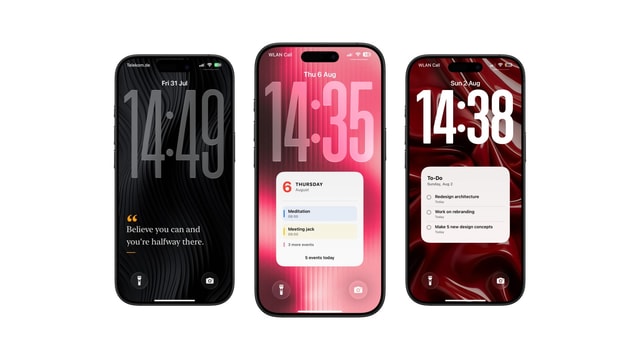
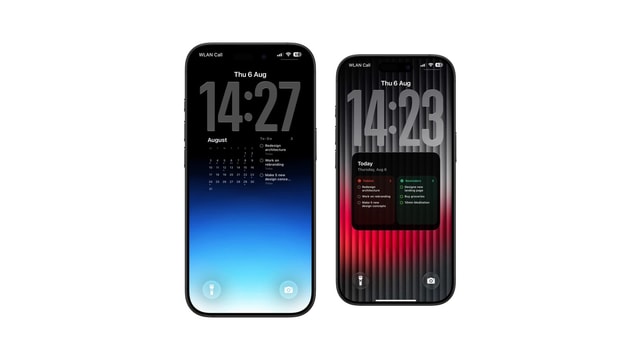
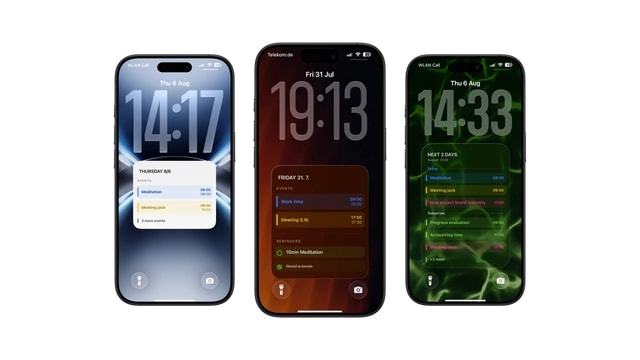
How to Put a Sticky Note on Your iPhone Lock Screen
Keep one short note on the screen you already glance at. Use a static image, a widget, or an automatically updated wallpaper.
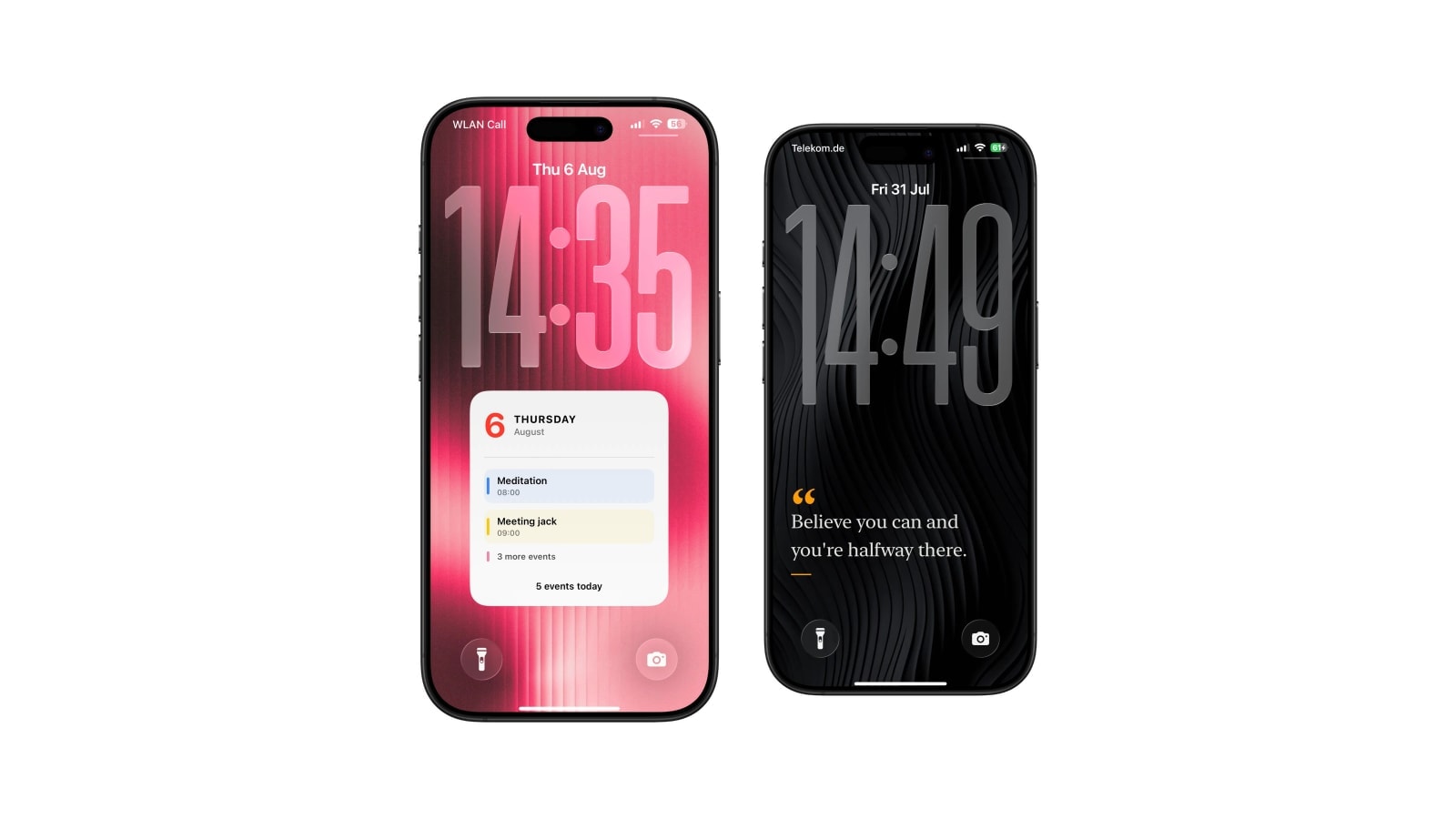
A sticky note on the Lock Screen is for the one small thing you keep forgetting, and it works because it is small. Six words that you meet forty times a day will get through; a list of nine will be background texture by Wednesday.
There are two practical routes. Making the note part of a photo takes about two minutes and needs nothing installed. Using a note layout that regenerates with the rest of your wallpaper takes slightly longer to set up and then costs nothing to change.
The interesting question is not really which route to use. It is what deserves to be on there, which is the last section and the one worth reading twice.
The fast route: make it part of a photo
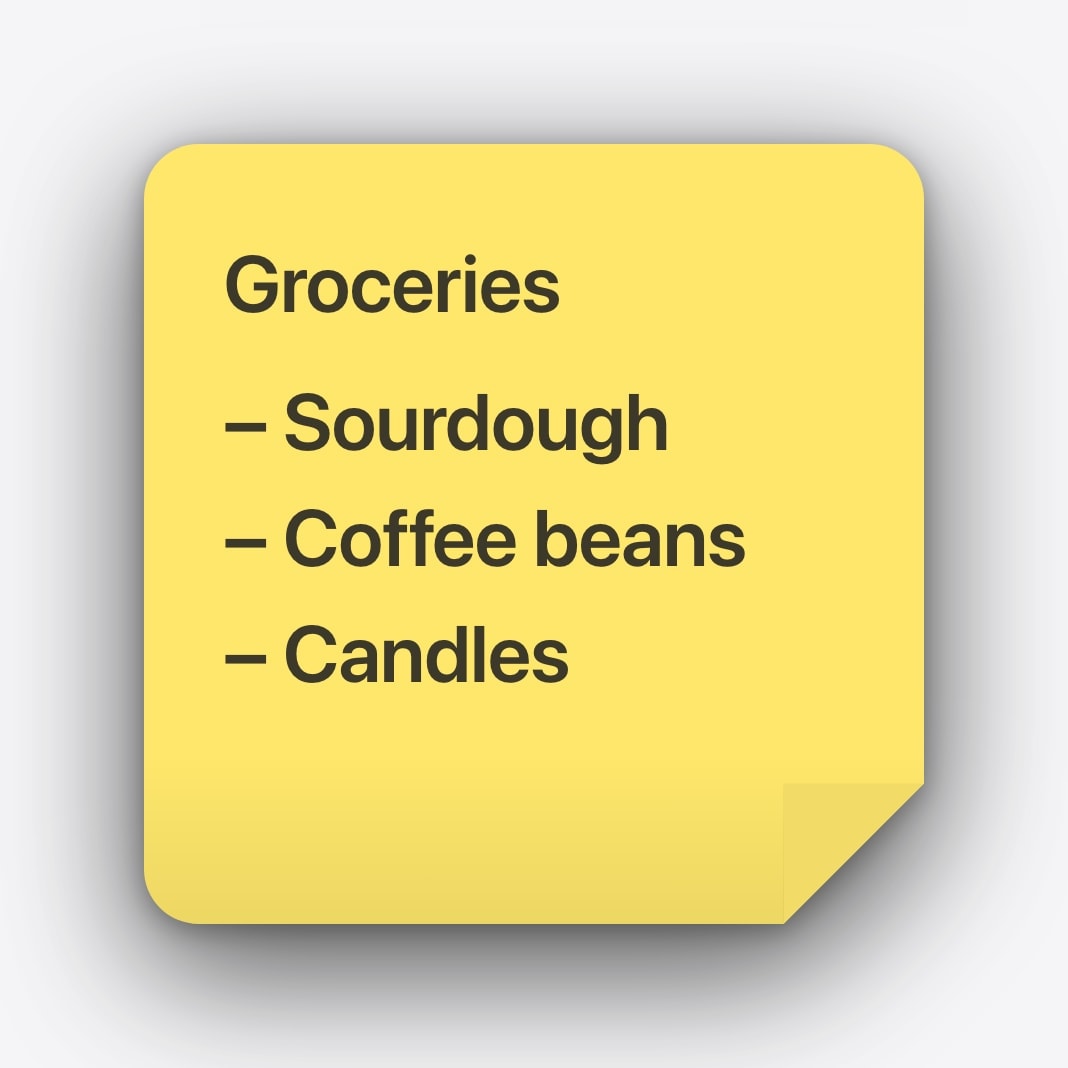
Draw a square in any notes or design app, type the line, export it, and set the image as your wallpaper. Leave the upper area clear for the clock and enough space at the bottom for notifications. It is genuinely quick, and for a note that will be gone in three days it is the correct amount of effort.
The cost arrives on the second edit. Every change means editing the image and setting it again, which is fine twice and tiresome daily. If you find yourself doing it every morning, that is the signal to switch routes rather than to become more efficient at it.
The reusable route: a generated note layout
In Calendarly, pick a note layout, type the message, and look at the Lock Screen preview. The app draws the paper, the ink and the placement into a normal wallpaper, and once the Shortcuts automation is in place, the current version comes back on schedule along with everything else on the screen.
Changing the note does not turn the wallpaper into a live document, and that is deliberate. You save the new words and either run the shortcut or wait for the next morning. The delay is small and the predictability is worth it: nothing on your Lock Screen changes without you having decided it should.
- 1Write the line as an instruction
“Bring the keys” beats “Be prepared.” If you cannot act on it, it will not survive a week on the screen.
- 2Choose real contrast
Dark ink on light paper is the most dependable combination in every lighting condition, including bright sun.
- 3Check it on the phone
Look at the finished Lock Screen with the clock, widgets and a notification present, not at the export.
- 4Refresh when it changes
Run the shortcut by hand after an edit, or let the next scheduled generation pick it up.
What actually deserves the note
The pattern that works is a cue tied to a moment: something you will need to remember at a specific point in the next few days, phrased so that reading it takes no effort at all. The pattern that fails is a general intention, because a general intention gives you nothing to do when you read it and so your brain quickly stops reading it.
- A physical object
Keys, passport, the returns parcel, the library book. These are perfect because the note stops being needed at the exact moment you leave the house.
- One call you keep postponing
Name plus a time window: “Call the dentist after nine.” That removes the small decision that makes it easy to defer again.
- A rule for this week
“No email before breakfast.” It works when it describes a boundary you can recognise in the moment, not a value.
- A temporary fact
A parking level, a hotel floor, a collection number. Strip out the identifying context: “P3 · blue” is fine, a full address with an access code is not.
Anyone holding the phone can read it. The Lock Screen shows its contents before authentication. Keep passwords, PINs and anything that identifies a door or an account out of it.
Let the note end
A sticky note stays effective for exactly as long as it is current. Remove it once the call is made, the trip has started or the week is over, because an expired note is not neutral: it teaches your eye to skip that part of the screen, and the next note inherits the habit.
The design can be as charming as you like. The message should stay plain.
Questions people ask
Yes. Use a text-widget app, add the note to a photo by hand, or generate a sticky-note wallpaper in Calendarly.
A wallpaper note is not. A widget can open its app when tapped.
A layout designed for the Lock Screen reserves the clock area. Always check the finished wallpaper on the phone before using it.
Yes. Change them in the app and refresh the wallpaper. The current image stays as it is until it is generated again.
One concrete, temporary cue: something to bring, a call to make, a short rule, or a fact you keep having to look up.