
To-Do List App That Shows on the iPhone Lock Screen: Every List in View
Which to-do list apps put your tasks on the iPhone Lock Screen: Calendarly draws Reminders, Todoist, Google Tasks, To Do and TickTick into the wallpaper, compared with Things 3, Todoist, TickTick, MinimaList and LockScreenNotes.
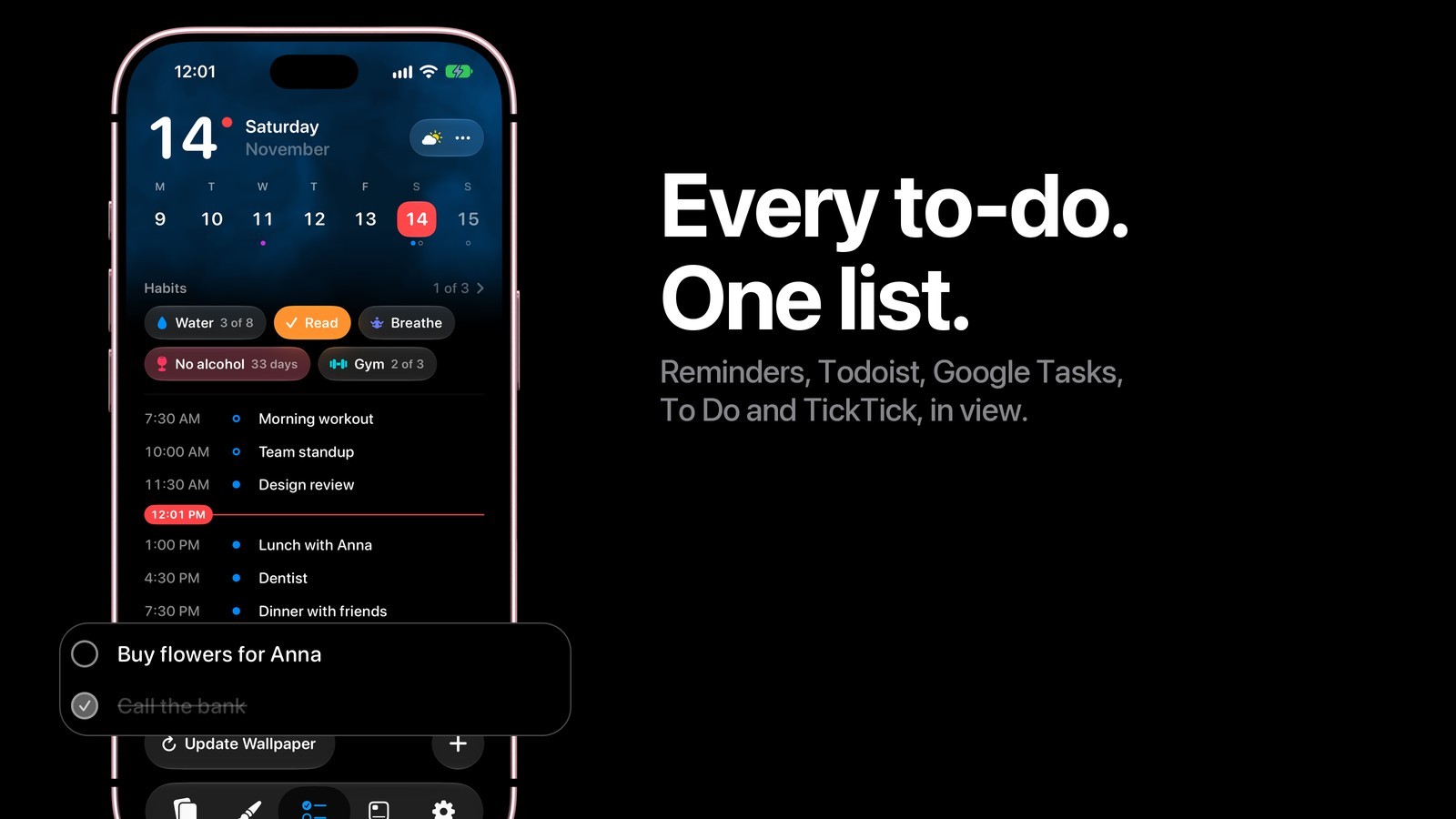
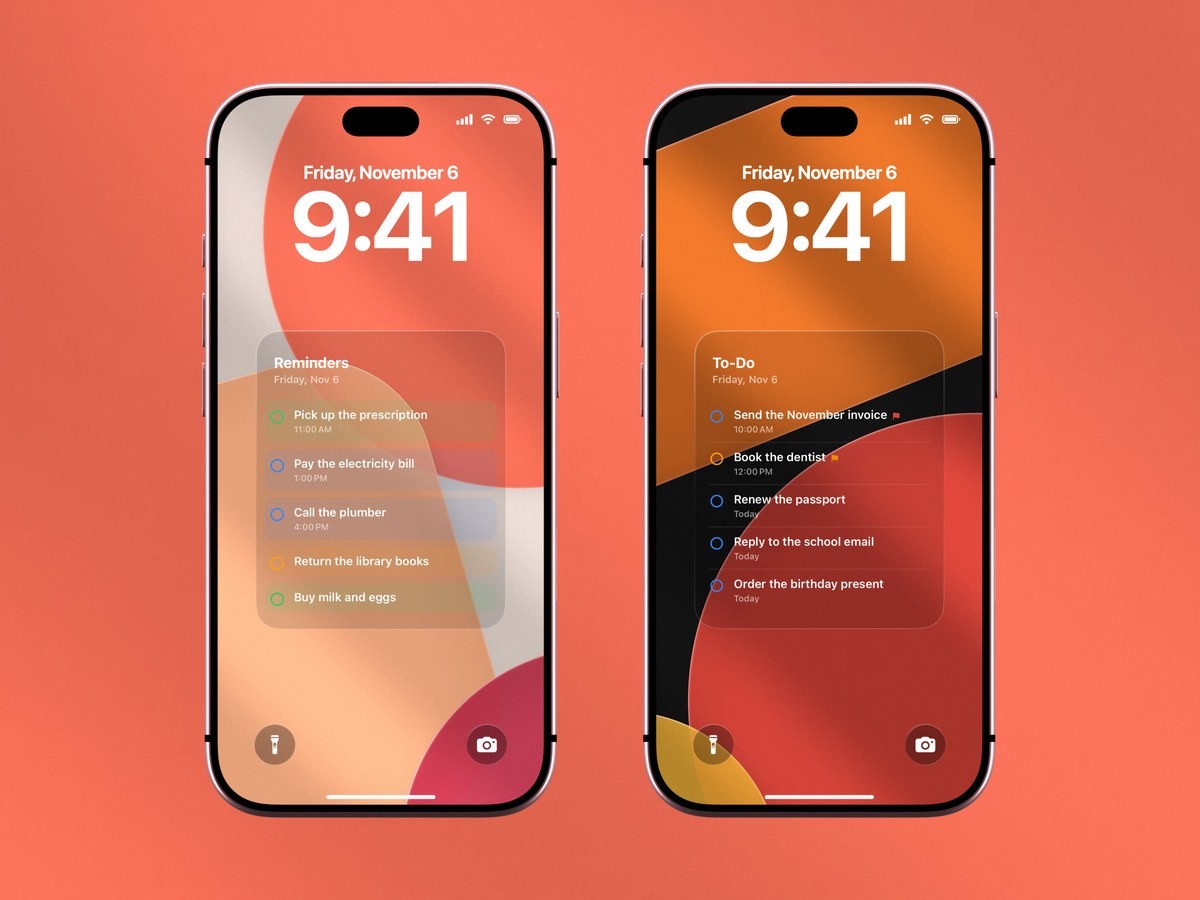
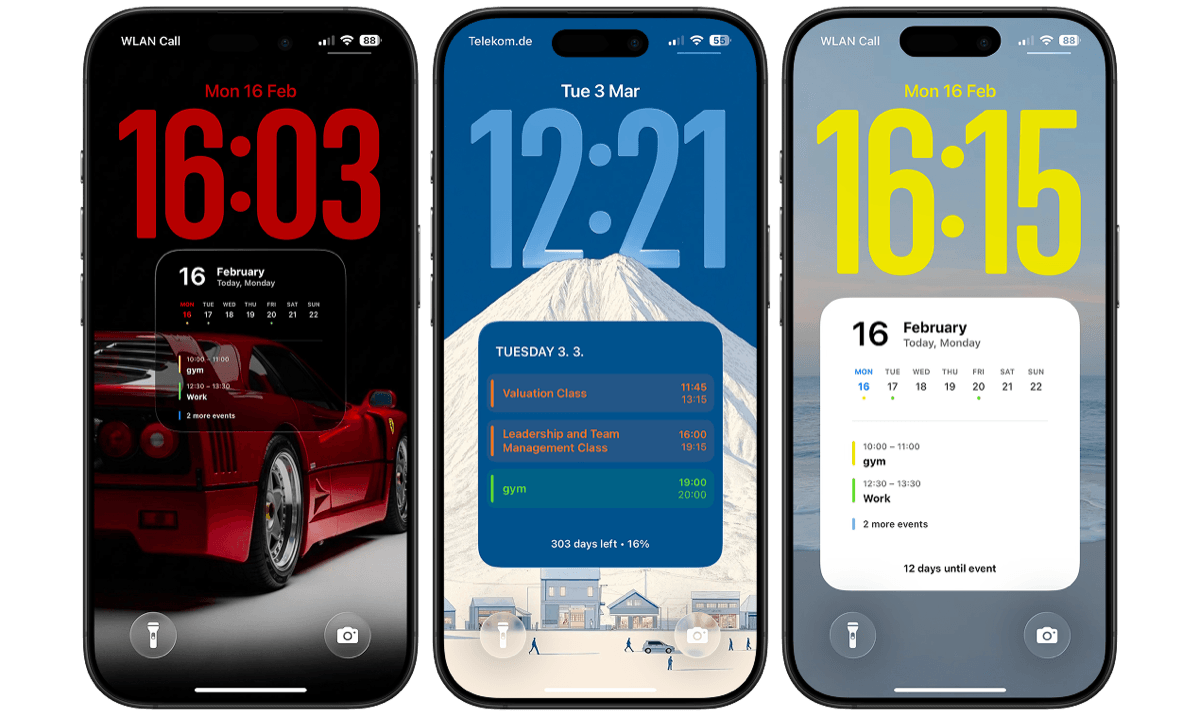
The to-do list app that shows the most of your list on the iPhone Lock Screen is one that draws the list into the wallpaper, because a Lock Screen widget only has room for a task or two. Calendarly does this for free: it gathers Apple Reminders, Todoist, Google Tasks, Microsoft To Do and TickTick into one list, draws the next five or so tasks under the clock and redraws the picture every morning. It also has a free To-Do widget for the Lock Screen and the Home Screen, where a tap on the circle ticks off a Reminders task.
Most people who search for this have already tried a widget. Apple’s Reminders widget and the widgets of most task apps sit in the row under the clock, which is about the height of a notification, so they show the first task of one list and nothing about the rest. That is enough for the one thing you are about to do and too little for a day with eight errands spread over two apps.
Below are the apps that put a to-do list on the Lock Screen, what each one’s App Store page says it does, and how to set up Calendarly in about five minutes. The wallpapers work on iOS 16.6 and later; the Today page, where the same list sits beside your calendar, needs iOS 26.
What to look for in a Lock Screen to-do app
You read a Lock Screen in about a second, at arm’s length, before you unlock. Whether an app helps there comes down to how much of the list fits on that screen and whether it reads the app your tasks already live in.
- How many tasks you can see
A widget under the clock fits one or two lines. A wallpaper or a large card can show five or more at a size you can read.
- Which lists it reads
If your work tasks are in Todoist and your shopping list is in Reminders, an app that reads only its own lists means copying tasks by hand. Calendarly reads both, and Google Tasks, Microsoft To Do and TickTick too.
- Ticking off without unlocking
Interactive widgets can mark a task done with a tap. Check which sources allow it, since some apps only read the lists of others.
- The calendar beside it
A to-do at 2 PM means more next to the 1 PM meeting. Some layouts put events and tasks in one card.
- What it costs
Several apps are free with a paid tier. Note what the free tier covers before you set everything up.
To-do list apps for the iPhone Lock Screen compared
These come up first when you search the US App Store for a to-do list with a Lock Screen widget, next to Calendarly. The facts come from each app’s App Store page, read on 28 November 2026. Not named means the listing does not mention it; the app may still have it.
| App | Best for | Lock Screen in the listing | Price in the listing | Needs |
|---|---|---|---|---|
| Calendarly | Tasks from five apps in one list, drawn across the Lock Screen wallpaper, with a To-Do widget and a Today page | The whole list behind the clock, plus a Lock Screen To-Do widget | Free; 99 of 156 wallpaper layouts free, every widget free | iOS 16.6; Today needs iOS 26 |
| Things 3 | A full task manager with projects, areas and a calendar view | Widgets on the Home and Lock Screens | $6.99 once | iOS 16.4 |
| Todoist | Projects, labels and recurring tasks across every device | Not named (it names checking tasks from the Home Screen) | Free | iOS 17.0 |
| TickTick | A to-do list with calendar views, habits and a Pomo timer | Not named | Free; Premium subscription | iOS 15.5 |
| MinimaList | Simple colored lists with your own background and font | Home Screen and Lock Screen widgets | Free; Premium $0.99 a month or $5.99 a year | iOS 15.0 |
| LockScreenNotes | A sticky note on the Lock Screen, typed or handwritten | A note on the Lock Screen, to-dos ticked there | Free, 100+ designs free | iOS 18.0 |
If you want one task manager to plan everything in, Things 3 and Todoist are the deep ones, and Things names a Lock Screen widget in its listing. MinimaList is the simplest list with a Lock Screen widget and its own look. LockScreenNotes suits a short checklist you write yourself, such as a packing list.
Calendarly is the better fit when your tasks are already spread over Reminders, Todoist or Google’s, Microsoft’s and TickTick’s apps and you want all of them on the Lock Screen at a size you can read. You keep adding tasks in the apps you use now, and Calendarly keeps them in view. For a planner that holds events and tasks together, see the best daily planner apps for iPhone.
How to put your to-do list on the Lock Screen with Calendarly
- 1Download Calendarly
Get Calendarly from the App Store. It is free and needs no account.
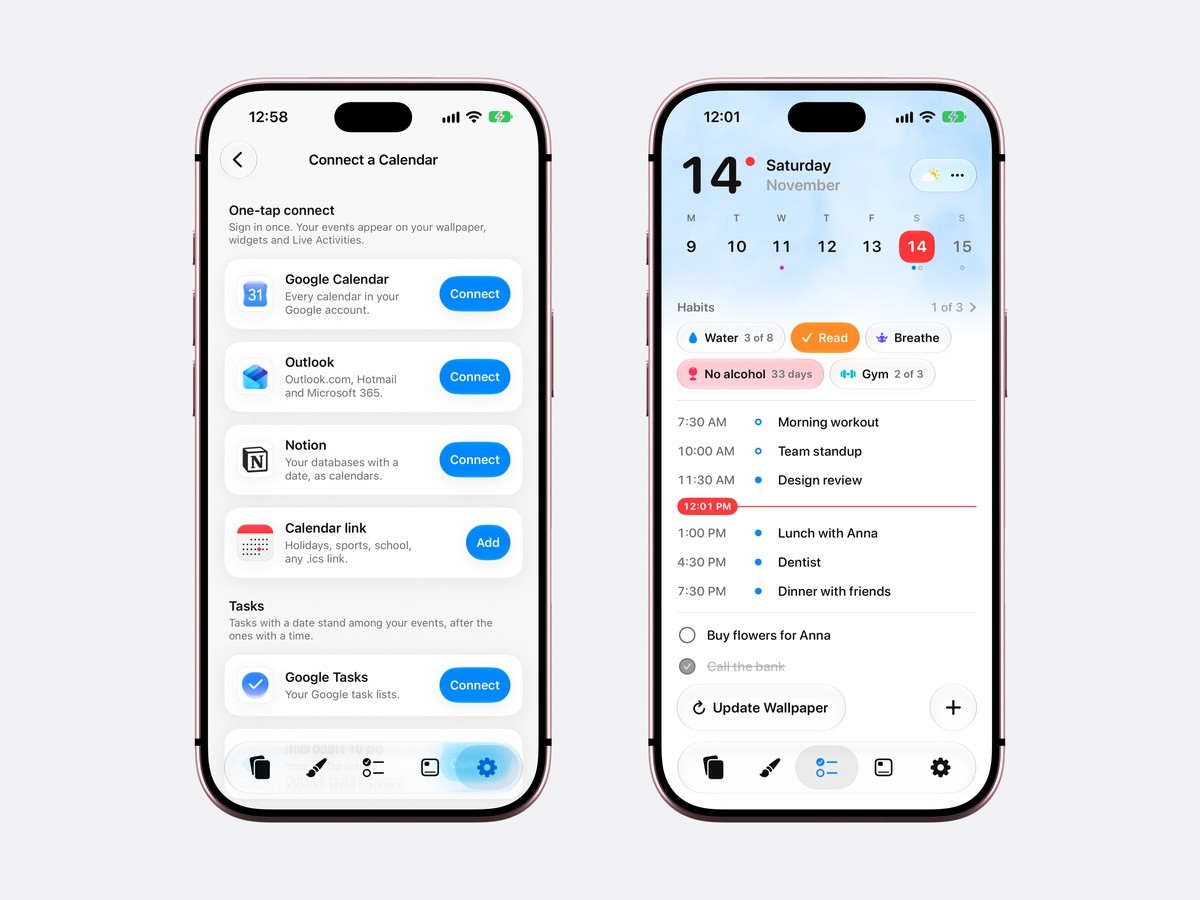
- 2Choose where the tasks come from
Allow access to Reminders when the app asks. For Todoist, Google Tasks, Microsoft To Do or TickTick, open Settings, then Calendar Accounts, and tap Connect next to the app under Tasks.
- 3Pick a To-Do layout in the Gallery
To-Do and Reminders layouts read My List, so the preview already shows your own tasks. Tap one to open it in the Studio.
- 4Adjust it in the Studio
Change the background, the font and the size of the card. The preview redraws as you go.
- 5Tap Use as Wallpaper
The first time, Calendarly adds the Update Calendarly Wallpaper shortcut and sets up one morning automation in the Shortcuts app with you. From then on the list is redrawn every day.
iOS lets no app change the Lock Screen whenever it likes, so the shortcut makes a new picture each time it runs. A task you finish leaves the wallpaper at the next run; add a second time to the automation, after lunch for example, if your list moves fast. The wallpaper has to be a photo style, since a live style such as Astronomy or Weather cannot take a new picture. The to-do list guide goes through every list layout.
One list from every app: My List
My List is Calendarly’s own list, and it also gathers the tasks you add in Calendarly, the Reminders lists you choose, and every account you connect: Todoist, Google Tasks, Microsoft To Do and TickTick. You choose which Reminders lists count, and a connected account such as Microsoft To Do lists each of its lists with a switch, so a shared family list can stay off the Lock Screen while the rest shows.
Your tasks stay in their own apps. Calendarly reads Google Tasks, Microsoft To Do and TickTick and never changes them, so you still finish those tasks in their own apps. Reminders and Todoist can be ticked off from Calendarly’s widgets, and the tick lands in the app the task came from. The Google Tasks guide and the Microsoft To Do guide cover what each connection reads.
The To-Do widget and the Tasks Live Activity
Calendarly’s To-Do widget comes in small, medium and large for the Home Screen and as a widget for the Lock Screen, all free. It reads My List unless you choose another source, so one widget shows Reminders and Todoist together where most task apps need a widget per list. A tap on the circle ticks off a task from Reminders, from Calendarly’s own list, or from Todoist once Calendarly has permission to write to it.
The Tasks Live Activity, also free, keeps the day’s list on the Lock Screen as a banner while you work through it, showing what is left to do today and what is already done. It suits an afternoon of errands, when you pick up the phone between stops. Apple’s widget guide shows how to add any widget to the Lock Screen.
Your to-dos beside the calendar on Today
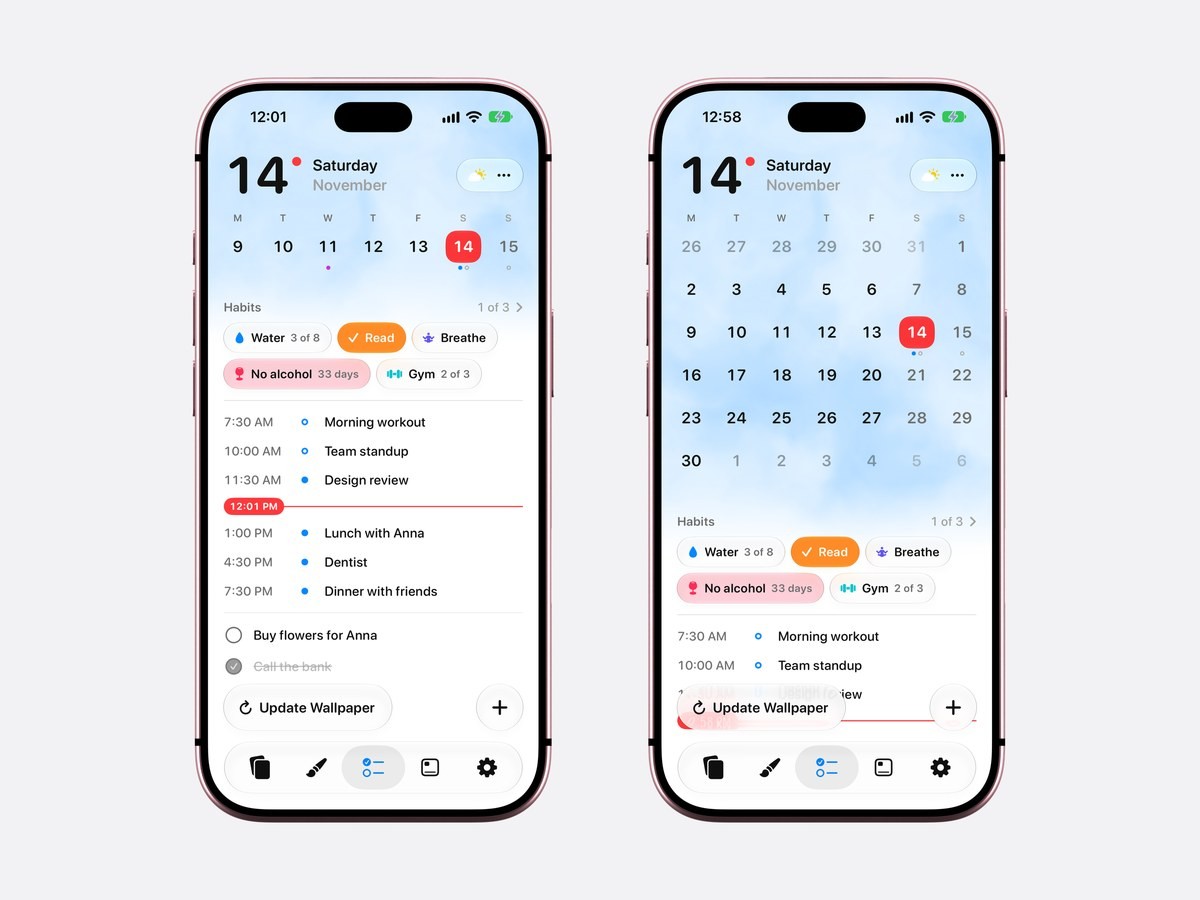
On iOS 26 and later, Calendarly’s Today page puts the day on one page: the week at the top, your habits, the events with a red line at the current minute, and the to-dos under them. A task lands on its due date, so tapping Friday in the week shows Friday’s tasks, and the plus button adds a new to-do, an event or a habit.
Today is free, like the To-Do widget. You can plan the day there in the morning and let the wallpaper show the same tasks each time you pick up the phone. If you also want your events on the Lock Screen, some layouts put the day’s meetings above the tasks; see calendar and reminders on one Lock Screen.
What the iPhone does without a to-do app
Apple’s Reminders has a Lock Screen widget: touch and hold the Lock Screen, tap Customize, tap the space under the clock and add Reminders. It updates the moment the list changes and shows the first task or two of one list. The Reminders widget guide explains its settings, and reminders on the Lock Screen covers the other ways.
| Reminders widget | Calendarly | |
|---|---|---|
| Tasks in view | One or two, from one list | About five on the wallpaper, more in the widgets |
| Task apps | Reminders | Reminders, Todoist, Google Tasks, Microsoft To Do, TickTick |
| Space | A row under the clock | The whole Lock Screen, plus a Lock Screen widget |
| Tick off | Yes | Reminders, Todoist and its own list, in the widget |
| Events beside the tasks | A separate widget | In one card, or on the Today page |
| Updates | Live | The widget live, the wallpaper every morning or on demand |
| Cost | Built in | Free; Pro unlocks every layout and your own photos |
Privacy
Calendarly reads your tasks on the iPhone and draws them there. It has no account of its own, and connected apps are reached with your sign-in on their own pages. Remember that anyone holding the phone can read the Lock Screen without Face ID, so a list about health, money or other people is better kept in a list that stays off the wallpaper.
Sources
Questions people ask
Yes. Calendarly draws your to-do list into the Lock Screen wallpaper and redraws it every morning, with tasks from Reminders, Todoist, Google Tasks, Microsoft To Do and TickTick. Things 3 and MinimaList name Lock Screen widgets in their App Store pages, and Apple’s Reminders has one built in.
For a list you can read in full, Calendarly, because the list fills the wallpaper and a free To-Do widget sits under the clock as well. For one deep task manager with a Lock Screen widget, Things 3; for a simple list with its own look, MinimaList.
Yes, in an interactive widget. Calendarly’s To-Do widget ticks off Reminders tasks, its own tasks and Todoist tasks once it may write to Todoist. Google Tasks, Microsoft To Do and TickTick are read only in Calendarly.
Yes. Connect the account in Calendarly under Settings, then Calendar Accounts, pick a To-Do layout and tap Use as Wallpaper. The Todoist guide shows the thirteen Todoist styles.
Yes. Calendarly is free to download, with 99 of its 156 layouts, every widget and every Live Activity free. Todoist, TickTick, MinimaList and LockScreenNotes are free too, some with paid tiers.
At the next run of the Update Calendarly Wallpaper shortcut, every morning or as often as you schedule it. The To-Do widget updates on its own during the day.
The to-do wallpapers and widgets work on iOS 16.6 and later. The Today page, which puts the tasks beside your calendar and habits, needs iOS 26.
Keep reading

Goal Tracker App for iPhone: Every Goal as Daily Steps, With the Deadline on Your Lock Screen

New Year’s Resolution Tracker App for iPhone: Every Resolution as a Habit, With a Year of Numbers
