How to Put Text on Your iPhone Lock Screen
Three ways to keep words on the Lock Screen: the caption trick, a photo, or text drawn into the wallpaper itself.
iOS has no free-form text field for the Lock Screen. You can change the clock font, add widgets and pick a wallpaper, but there is no built-in way to type a sentence anywhere on the canvas, which is why every method below involves getting the words into the wallpaper or into a widget.
That leaves three routes: write the text into the image, use a third-party text widget, or use an app that generates a designed wallpaper from words you can edit. For text that never changes, the first is the least work by a wide margin.
One thing applies to all three. Lock Screen text is public to anybody who can see the phone, which changes what should go on there more than any design consideration.
Route one: put the words in the wallpaper
Open the photo, use Markup or a photo editor, type the message over a copy, and set it. Position it away from the clock, the widget row and the notification area, which between them own most of the top half and a strip at the bottom. No third party ever sees the text, and there is nothing to keep working afterwards.
This is the right answer for anything that will sit there for weeks: a phrase you like, a travel note for the length of a trip, a name. Every change costs a new image, so it is the wrong answer for anything that moves.
Route two: a text widget
A text-widget app places your words in one of Apple’s reserved widget shapes. Editing is faster than remaking an image and the widget can open its app for the longer version, which is useful if the note is a pointer to something bigger.
The limit is space, and it is a hard one. Widget slots hold a short phrase, so any attempt at a paragraph will be cut off mid-word. Before installing one, check whether it needs an account and whether it syncs your text anywhere, because a single line on a Lock Screen rarely justifies a new data service.
Route three: generate a text wallpaper
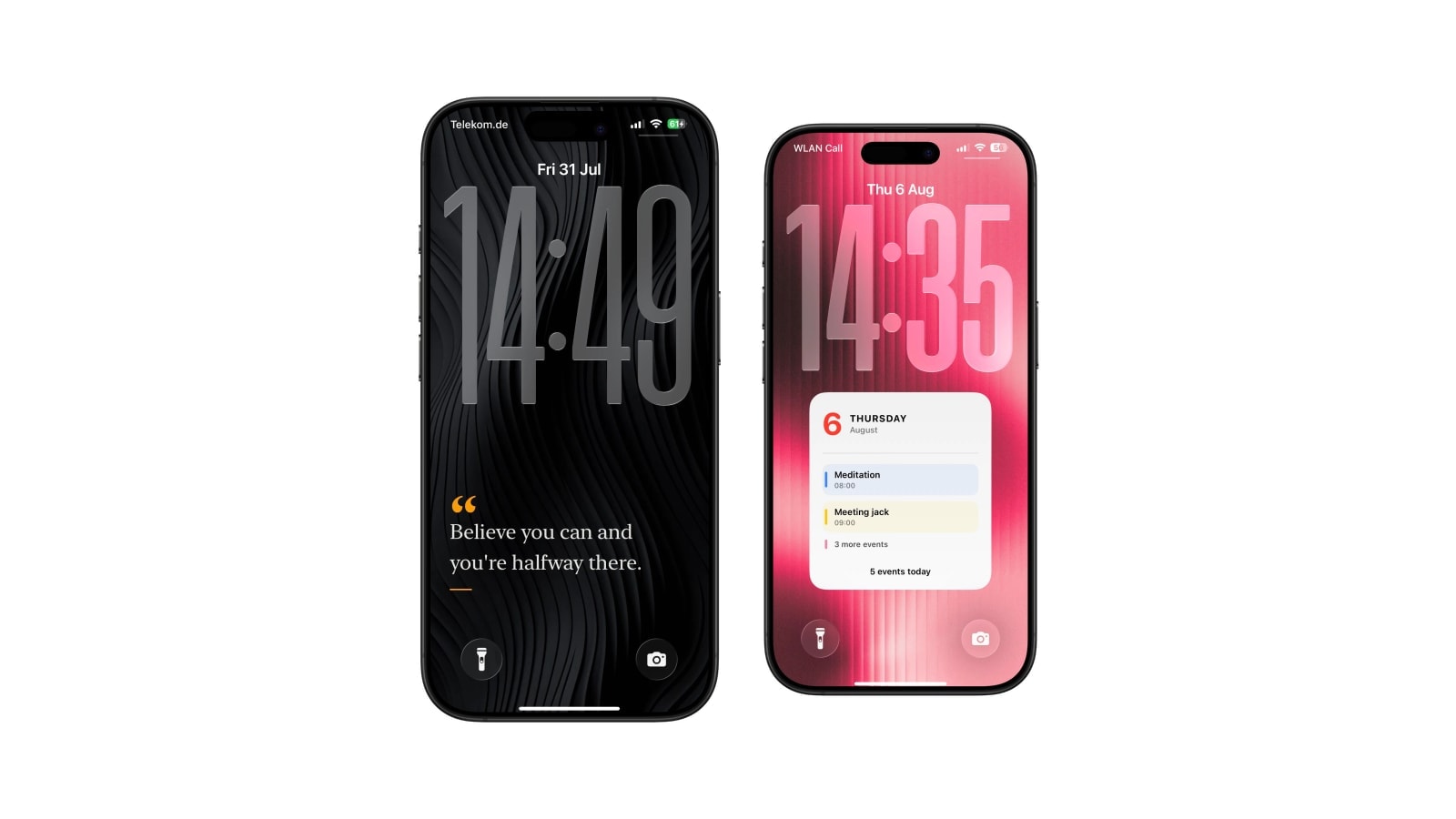
Calendarly can draw a short note, a quotation or a glass text card into the wallpaper, keeping it clear of the clock and the widget row automatically. You change the words in the app and refresh the image, either by hand or with the normal morning automation.
This route earns its place when the text is one part of a designed screen rather than the whole of it. A line beside the day’s schedule, a phrase under a countdown, a label on a month grid: all of those are hard to do with Markup and easy here. It is still an image, so nothing responds to a tap.
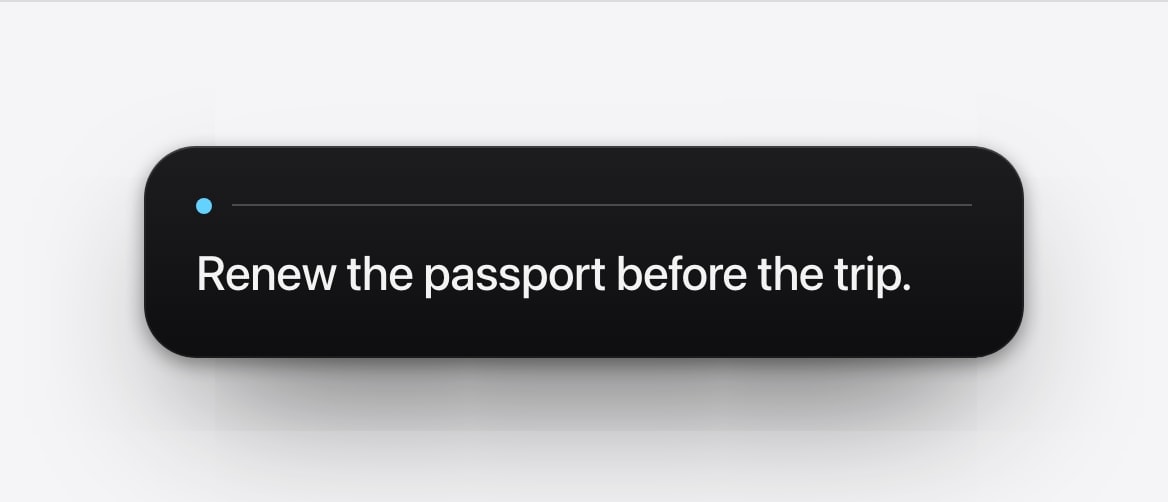
Built in, private, and finished in two minutes. No app, no automation, no maintenance.
A widget or a generated layout, so that changing the words does not mean remaking an image.
If you are adding contact details, use Medical ID instead
A common reason for wanting text on a Lock Screen is putting an “if found, call…” line on the phone. There is a better place for that. Open Health, then Medical ID, and turn on Show When Locked. It puts your emergency contacts and medical information behind the Emergency button on the passcode screen, where somebody helping you would actually look for it, and where a first responder is trained to look.
It also solves the privacy problem, since the details are not sitting in plain view on a table in a café. If you still want a visible line, keep it minimal: a first name and one number is enough for the good-samaritan case, and a full address on a wallpaper is a gift to the wrong person.
Making the words survive the real screen
- Keep it to one line
The screen is read in motion, in changing light, often one-handed. A second line halves the chance either is read.
- Contrast, not shadows
A drop shadow cannot rescue pale type over a busy photograph. Choose a quieter background or put a solid panel behind the words.
- Test with notifications
A message that looks perfect on an empty Lock Screen can spend most of the day hidden behind alerts.
- Leave other people out of it
Names, addresses, medical details and anything that identifies somebody else should not be on a screen strangers can read.
Questions people ask
Yes, by writing it into the wallpaper image, adding a third-party text widget, or generating a wallpaper that contains the text.
No. Lock Screen customisation covers the clock style, widgets and the wallpaper, with no free-form text field.
For text that rarely changes, adding it to the image with Markup. It needs no app and takes about two minutes.
In Medical ID. Open Health, then Medical ID, and turn on Show When Locked so the information sits behind the Emergency button.
No. Anyone who can see the locked phone can read it, without unlocking anything.